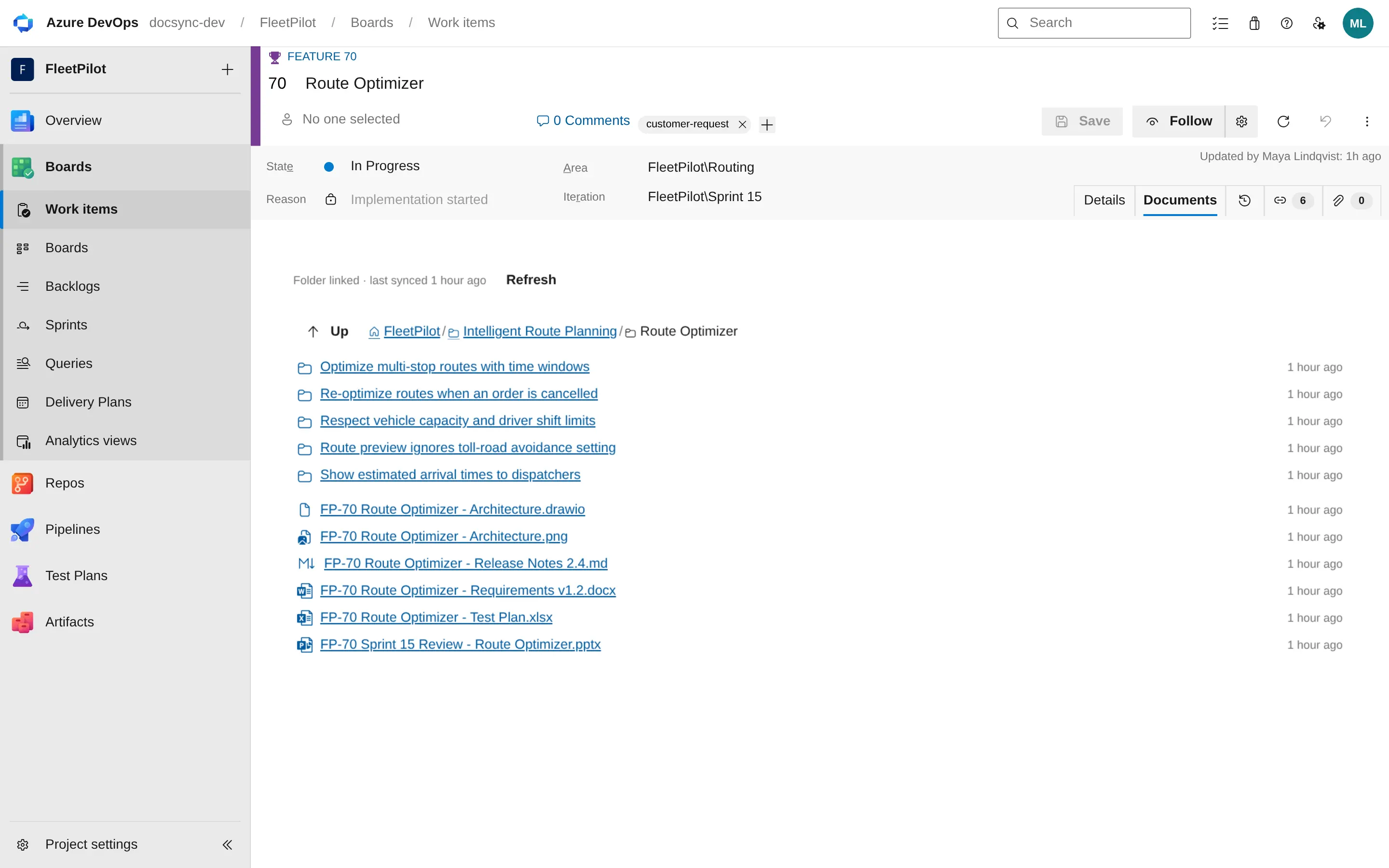
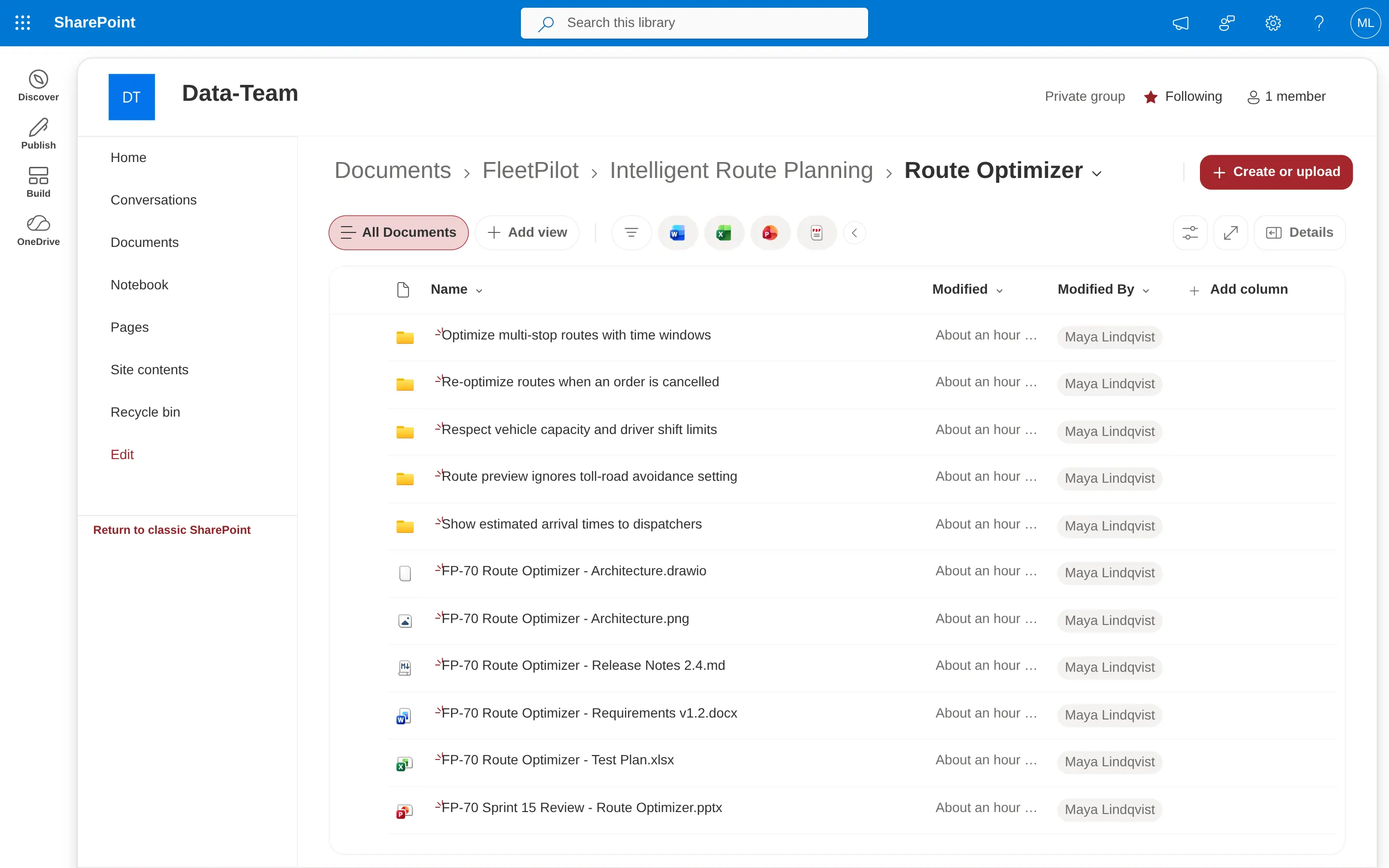
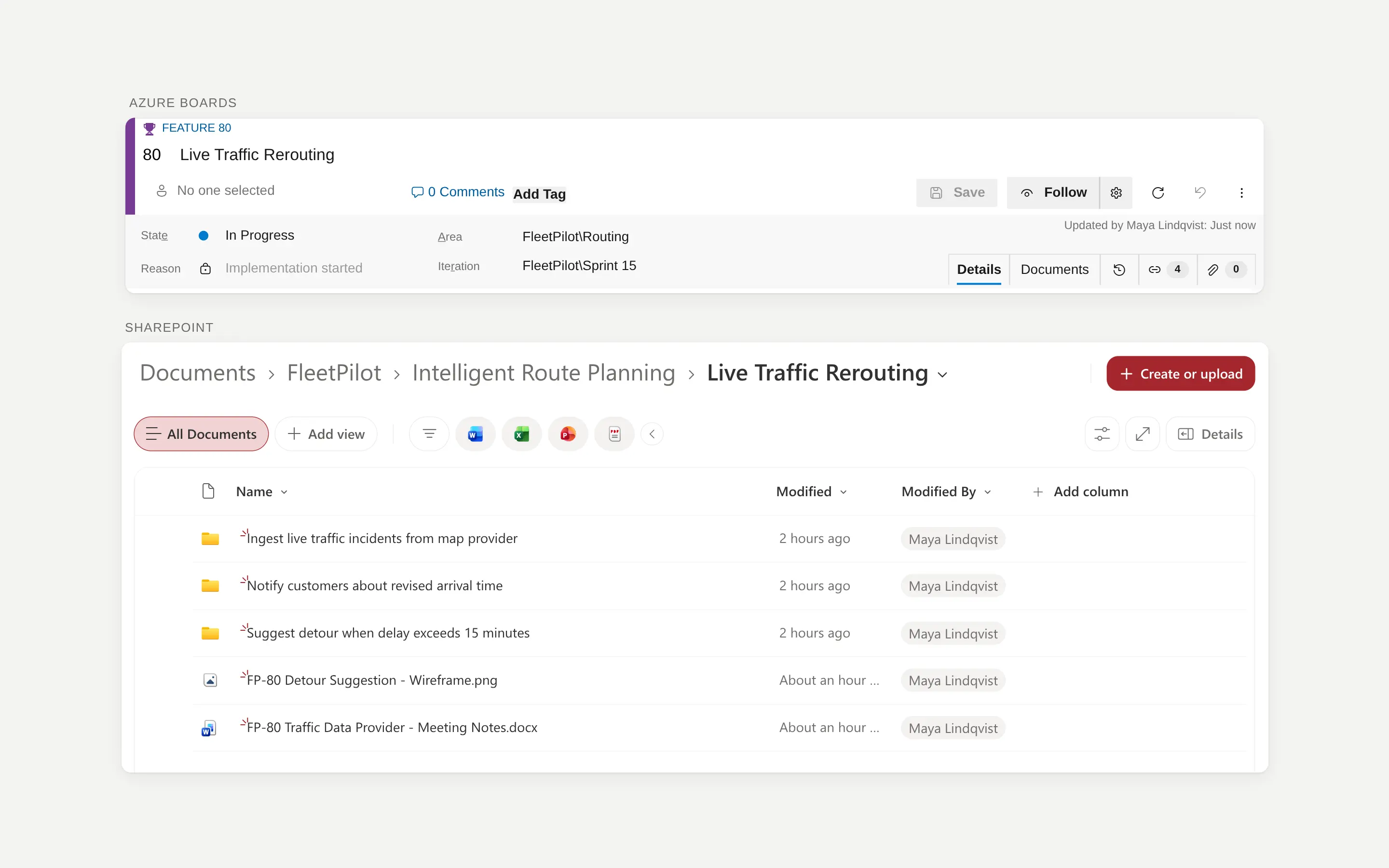
The Documents tab on a Feature in Azure Boards, and the same folder in SharePoint: same folders, same files, live. Example project with fictional data.
Problem → solution
Stop uploading copies nobody updates.
Today: copies uploaded to work items and forgotten
Someone attaches a Word file to a story. The real version moves on in SharePoint.
Two weeks later, nobody knows which file is current.
SharePoint folders are created and named by hand, and drift away from the backlog.
With DocSync: one live folder per work item
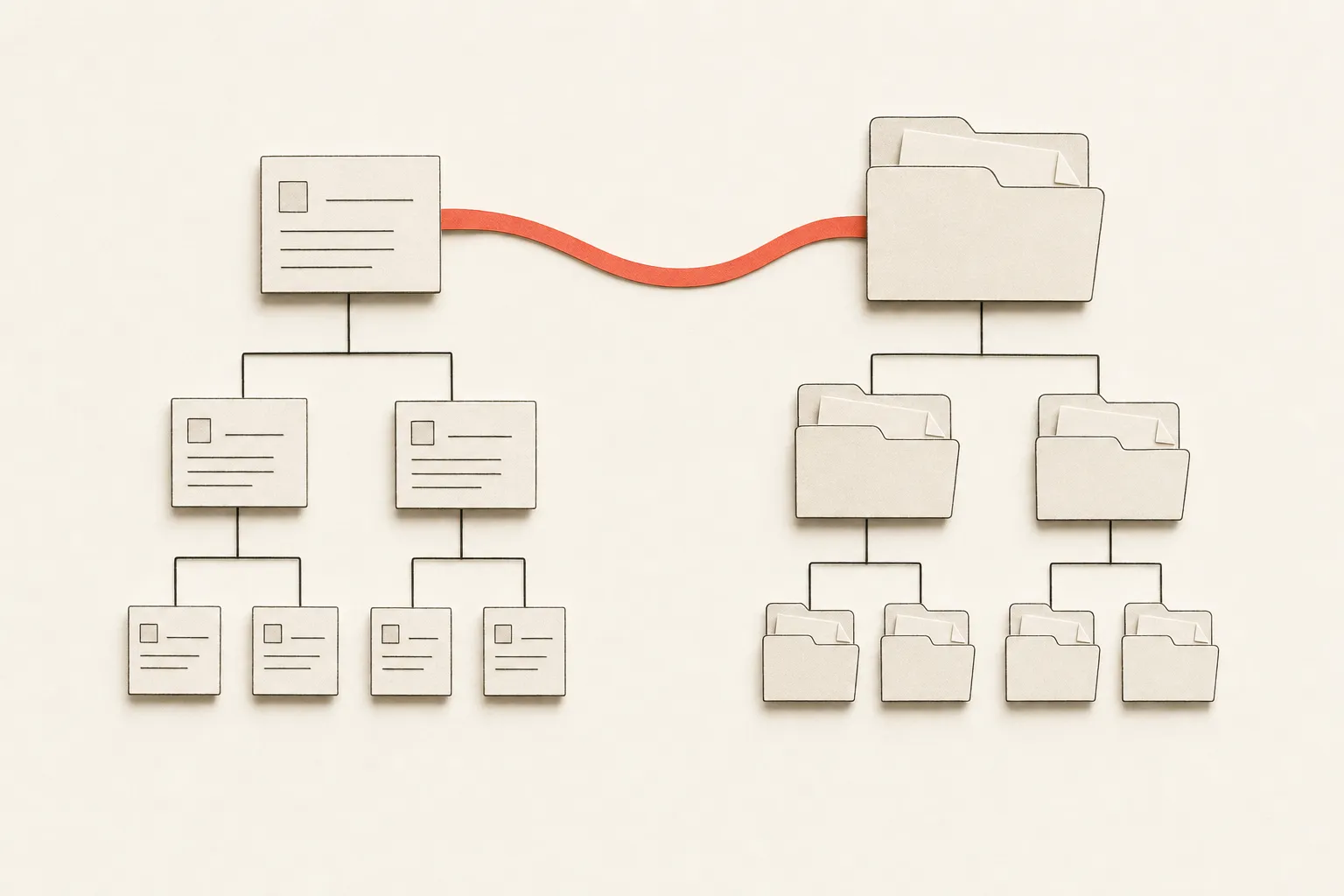
Every work item gets its own folder, nested exactly like your backlog.
The Documents tab shows the files in that folder, live. One click opens the current version.
DocSync never uploads or copies a document. It only links to it.
Concept illustration — not a product screenshot.
How it works
Three steps. One admin approval.
1
Install in Azure DevOps
Add DocSync to your Azure DevOps organization. During early access, we share the private extension with your organization.
2
An admin approves once
A Microsoft 365 admin gives consent once. DocSync then works as the signed-in user, so nobody can reach more than they already can.
3
Pick the SharePoint site
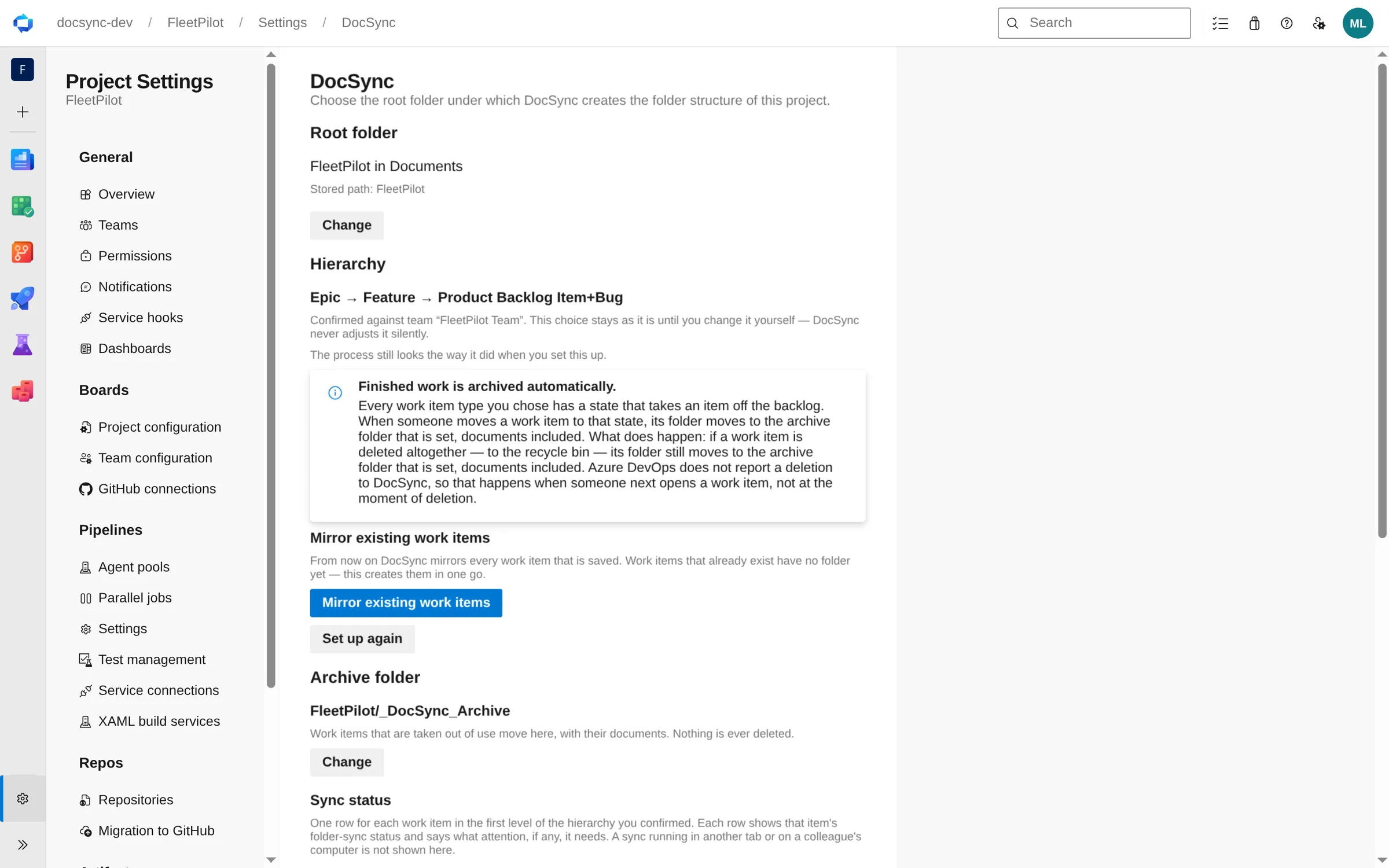
In project settings, choose the root folder. DocSync reads your backlog levels, you confirm the hierarchy and set an archive folder, then mirror the work items that already exist.
⤢Step 3 in Project settings → DocSync: root folder, confirmed hierarchy, automatic archiving and mirroring the work items that already exist.
Choose how far DocSync may reach
All sites the user can access
Sites.ReadWrite.All · default
One consent, no extra step. Still delegated: DocSync can only reach what the signed-in user can, and stays inside the root folder you choose.
Only selected sites
Sites.Selected + site grant
Stricter: DocSync can only reach the site an admin grants it. That grant is one extra admin step; we guide you through it.
Features
Everything here is built and working today.
Screenshots show an example project with fictional data.
Same structure, automatically
Your Epic → Feature → Product Backlog Item hierarchy becomes the same nested folders in SharePoint or OneDrive. DocSync derives the levels from your project’s backlog, including Scrum and CMMI names, and you confirm before anything is created.
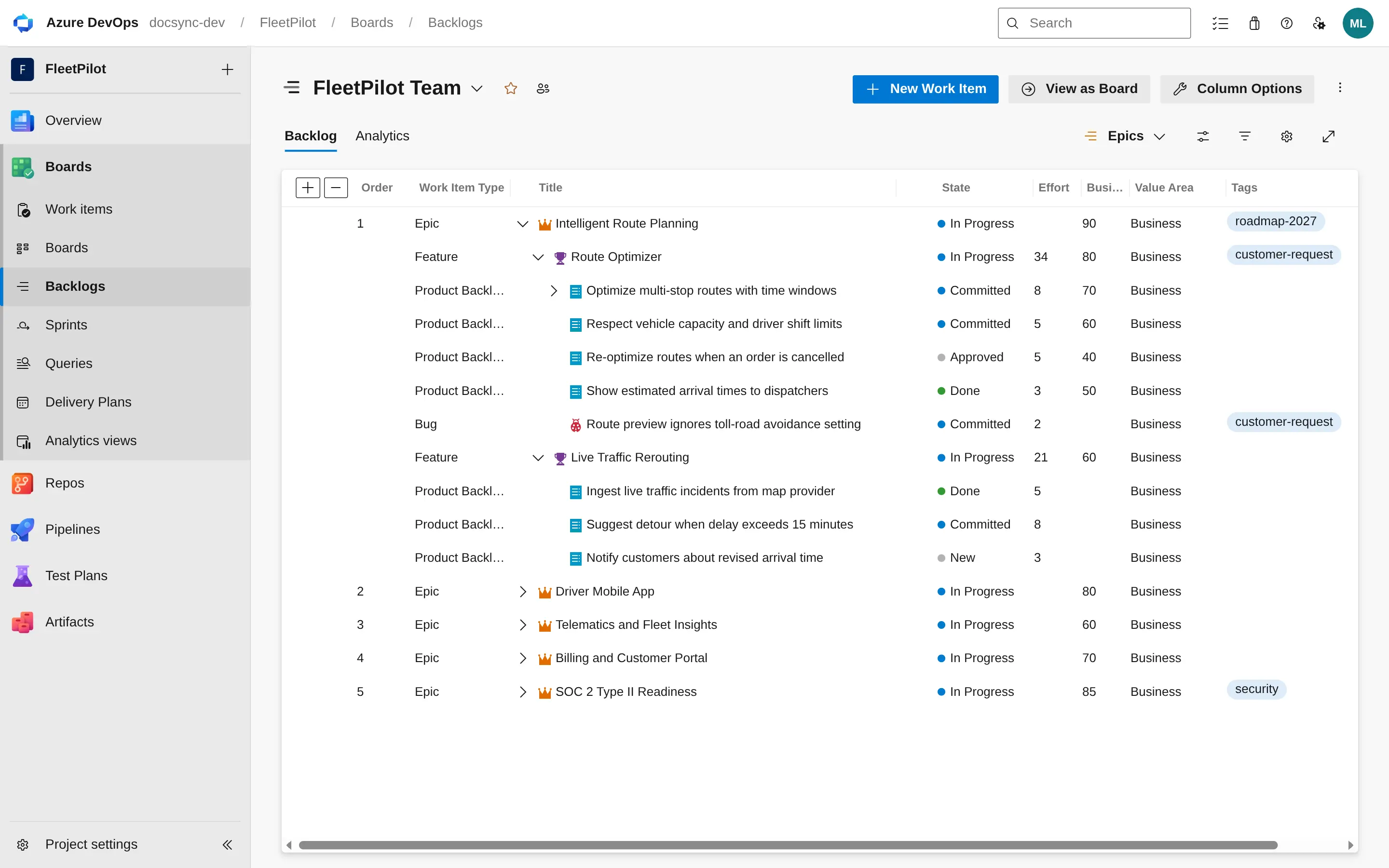
SharePoint: the Feature “Route Optimizer” and one folder per backlog item.
↳ In SharePoint, the same structure appears by itself: a folder per work item, named after it, nested under its parent. Documents live next to the folders of the work they belong to.
Folders follow renames and moves
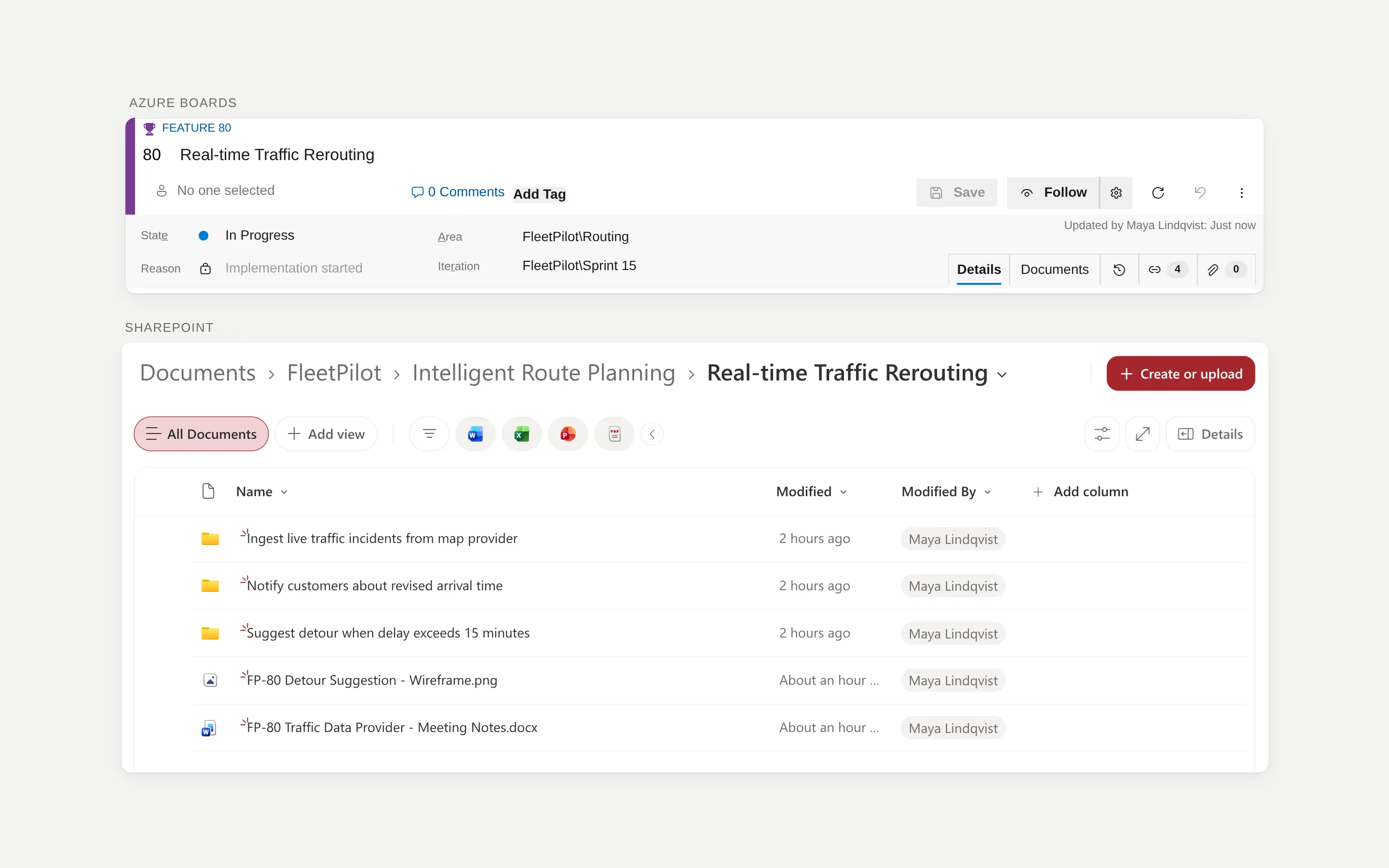
Rename a work item and its folder is renamed. Give it a new parent and the folder moves along, files and all. DocSync follows the work-item ID, not the name, so nothing is duplicated.
After: renamed in Boards, renamed in SharePoint. Same subfolders and files.
Stays in sync
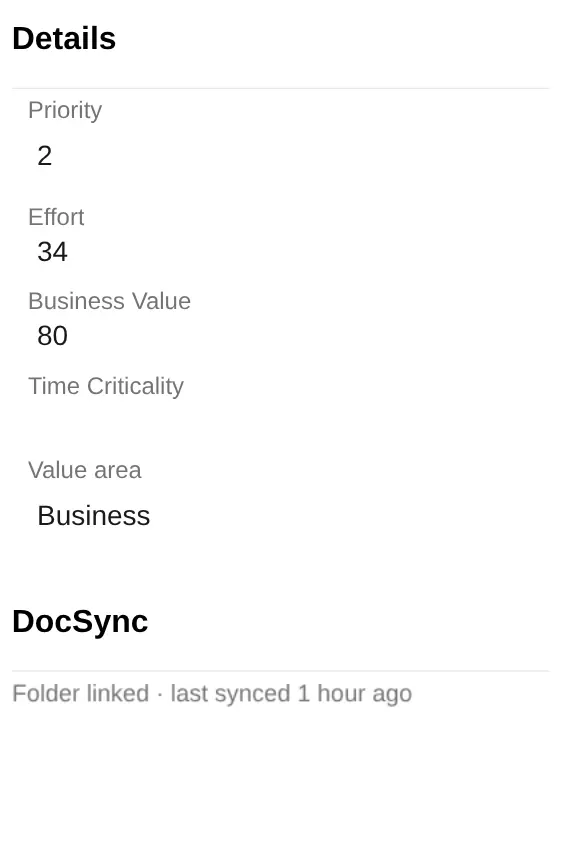
The work item form shows whether its folder is linked and when it last synced, so nobody has to guess.
Live files, no copies
The Documents tab lists the files in the work item’s folder. Browse subfolders, open a file in Office for the web, or jump to it in SharePoint.
Archived, never deleted
When a work item is finished or removed, its folder moves to an archive folder with its documents. DocSync never permanently deletes a document.
Five languages
The interface speaks English, Dutch, German, Spanish and French.
Trust
Why IT can say yes.
Stays in your Microsoft 365
Your documents stay in your Microsoft 365. DocSync sends no data from Azure DevOps, SharePoint or OneDrive to Surpassion or anyone else.
Offline licence check
Your licence key is checked offline inside the extension. No licence server to call.
EU sole proprietor
Surpassion, Zandvoort, The Netherlands · KvK 52362914.
Paddle is merchant of record
Paddle handles checkout, VAT and invoices. Billing goes through Paddle, not through the extension.
Five languages
English, Nederlands, Deutsch, Español, Français.
Questions IT and finance ask
Is DocSync available now?
DocSync is in early access. The Marketplace listing is still private: email [email protected] and we share the extension with your organization and help you set it up. Online purchasing opens later.
What permissions does DocSync need?
A Microsoft 365 admin approves DocSync once. DocSync then uses delegated permissions: it acts as the signed-in user and can never reach more than that user already can. You choose one of two levels: all SharePoint sites the user can access (Sites.ReadWrite.All, the default), or only selected sites (Sites.Selected plus one site grant by an admin). No application permissions, no client secret. You can withdraw access at any time by removing the site permission or the DocSync enterprise app in Microsoft Entra.
Why does the consent screen say “unverified”?
Microsoft shows “unverified” until a publisher has completed Microsoft’s publisher verification, and that requires an established Marketplace presence that a new extension does not have yet. It does not change what DocSync can do: what is granted are exactly the permissions above. Admin approval is needed either way; verification does not remove that step.
What data goes where?
Your documents stay in your Microsoft 365. DocSync sends no data from Azure DevOps, SharePoint or OneDrive to Surpassion or anyone else. DocSync runs in your browser inside Azure DevOps and talks to Microsoft directly. Your licence key is checked offline inside the extension. Billing goes through Paddle, not through the extension. Paddle only receives the billing details you enter at checkout. See our privacy policy.
How does the trial work?
Organizations with more than five Basic-access users get a full 14-day trial, without a payment card. If it ends without a licence, sync pauses: nothing is deleted or moved, and your folders and files stay where they are. A permanent free plan for up to five users is planned for launch.
How do I cancel?
Paid licences are yearly. Cancel any time via the link in your Paddle confirmation email or at paddle.net. Cancelling stops the next renewal; you keep access until the end of the paid year.
Who sends the invoice, and how is VAT handled?
Paddle is the merchant of record. Invoices are issued by Paddle.com Market Ltd (Paddle.com Inc. for US buyers), and your card statement shows PADDLE.NET* DOCSYNC. Paddle calculates and pays the VAT; add your company name and VAT number at checkout so they appear on the invoice. Need to pay by invoice with a PO number? Contact us.
Can I get a refund?
Yes. Ask within 14 days of your purchase or renewal and you get a full refund, no questions asked. See the refund policy.
DocSync / Request early access
Bring your work and documents together.
DocSync is in early access. Email us your Azure DevOps organization, its number of Basic-access users and what you want to connect. We share the extension with your organization and help you set it up.